Synced Playback Guide
Everyone who opens the same video can watch it together, with play, pause, seek and playback speed kept in step.
Each browser plays the video from the server itself, so no single person's connection carries the load the way screen sharing does.
1. Start syncing
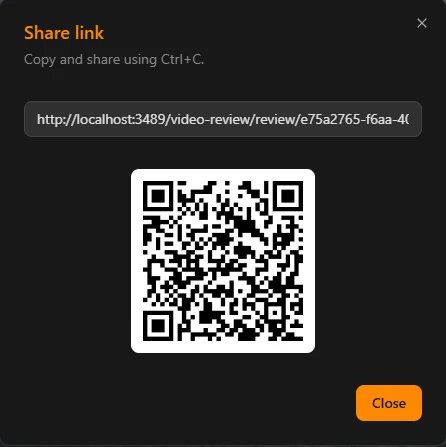
Section titled “1. Start syncing”- Open the video you want to watch together.
- Press the Sync playback button (the people icon) below the player.
- A Share link dialog appears. Copy the URL or show the QR code, and share it with your teammates.
2. Join from the link
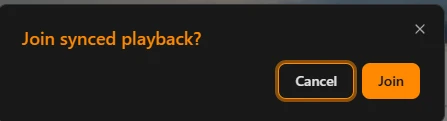
Section titled “2. Join from the link”Open the link you received and press Join.
3. Watch together
Section titled “3. Watch together”When anyone in the session plays, pauses, seeks or changes the playback speed, every screen follows.
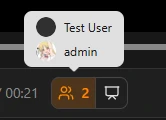
The number on the Sync playback button is how many people have joined. Hover over it to see who they are.
While syncing, a few things work differently:
- Loop playback and auto play of the next video are turned off.
- Writing a comment does not pause playback, and comments are not posted to chat such as Slack, so you can comment freely.
4. Present
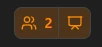
Section titled “4. Present”Press the Present button next to the Sync playback button to become the presenter. Only the presenter can control playback.
Press it again to stop presenting.
Hand over the presenter role
Section titled “Hand over the presenter role”Any other participant can press the Present button to ask the presenter to hand over.
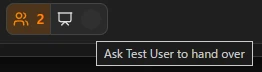
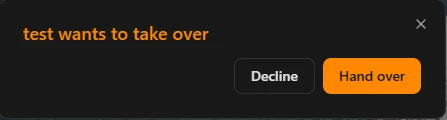
The presenter sees a prompt. Pressing Hand over makes the participant who asked the new presenter.
5. Leave
Section titled “5. Leave”Press the Sync playback button again, close the browser, or open another video.