Videos
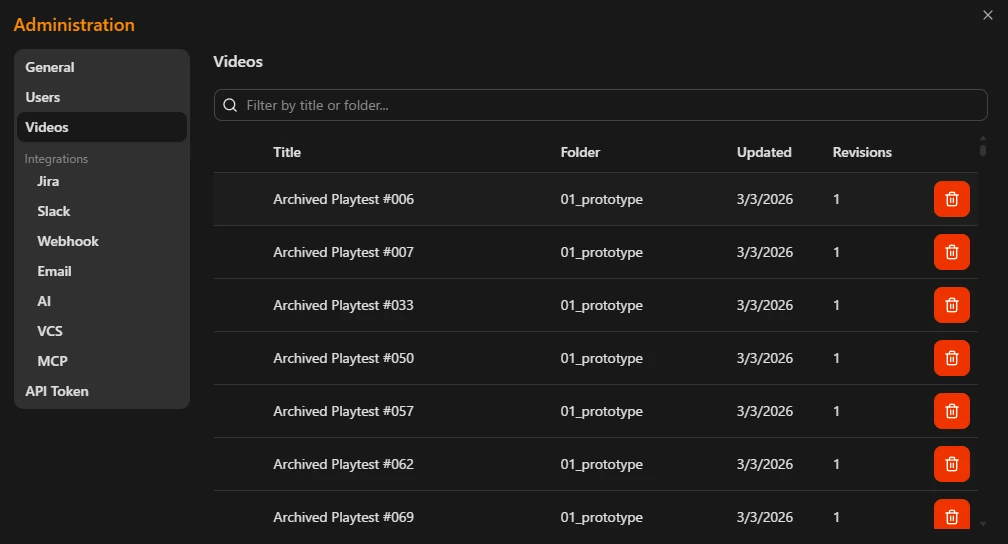
See the list of videos, delete the files of a video or of a revision, and move and rename videos in bulk with a CSV file.
1. Delete a video
Section titled “1. Delete a video”- Press Delete at the right of the row.
- Type
Deleteinto the confirmation field (same capitalization). - Press Delete.

Note: deleting a video deletes every revision too, and the video leaves the list.
Note: uploading the same folder key and title again brings it back with its comments, which are not deleted.
2. Delete only a revision
Section titled “2. Delete only a revision”- Open the revisions with the
>arrow. - Press Delete on the revision and confirm by typing
Deletein the same way.
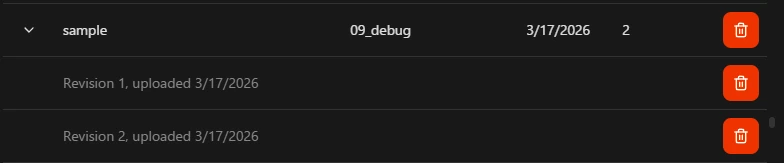
Note: once a revision is deleted, its video can no longer be watched.
3. Move and rename videos with a CSV file
Section titled “3. Move and rename videos with a CSV file”Export the videos to a CSV file, edit the folder and title and import it to move and rename videos in one go.
Export to a CSV file
Section titled “Export to a CSV file”Press Export above the list to download videos.csv.
Edit the CSV file
Section titled “Edit the CSV file”| Column | Content |
|---|---|
| id | The video's id (do not change) |
| folder | Folder key Changing it moves the video to that folder |
| title | Title Changing it renames the video |
| files | Where each revision's file is stored (not read on import) |
Rows for videos you do not change can stay as they are or be removed.
Two videos cannot have the same title in the same folder.
Note: save the file as UTF-8.
Note: after a move or rename, an upload with the old folder key and title creates a new video.
Note: if you upload from the CLI or Unity / UE, change the folder key and title they send as well.
Import the CSV file
Section titled “Import the CSV file”- Press Import above the list.
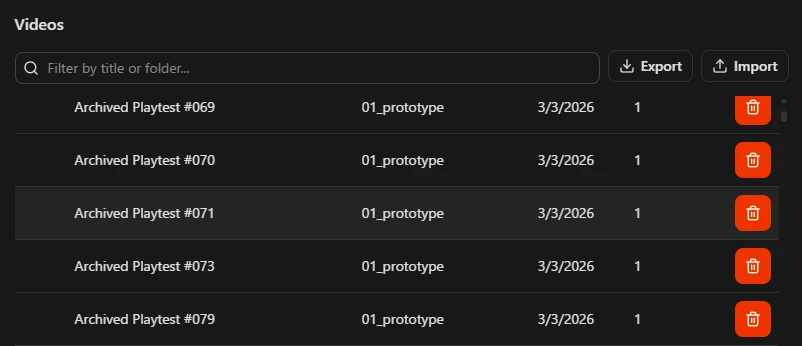
- Choose the CSV file and press Import.
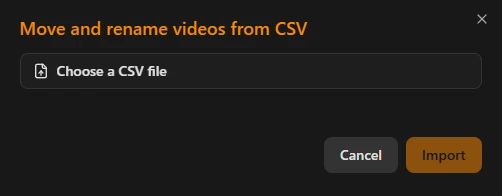
When the import succeeds, the number of updated videos is shown.
When there are errors, nothing is applied and a list of the row, column and reason is shown.