SSO (OIDC)
Connect an OpenID Connect identity provider (OneLogin, Okta, Microsoft Entra ID, Keycloak, ...) and the login screen gets an SSO tab. People sign in with their IdP account, and a VideoReview user is created for them.
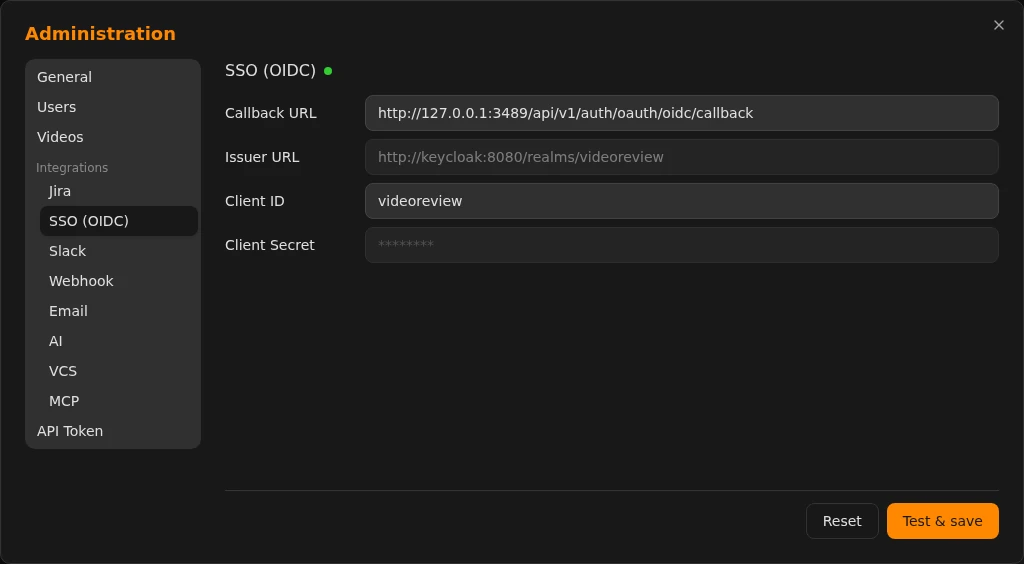
1. Register the app at the IdP
Section titled “1. Register the app at the IdP”Ask the IdP administrator to register VideoReview as an OpenID Connect app.
- Open the SSO (OIDC) section in Administration and copy the value of the Callback URL field
- Hand it to the IdP administrator to put in the app's Redirect URI
- Once the app is registered, receive the Issuer URL, Client ID and Client Secret
Note: IdPs require an https Redirect URI, so serve VideoReview over https first (see the https guide).
2. Connect and save
Section titled “2. Connect and save”Enter what you received from the IdP administrator.
| Field | Meaning |
|---|---|
| Callback URL | The URL registered at the IdP (built from the URL this screen is open at, so nothing to enter) |
| Issuer URL | The OpenID Connect URL received from the IdP (for OneLogin, https://<subdomain>.onelogin.com/oidc/2) |
| Client ID | The ID of the registered app, received from the IdP |
| Client Secret | The secret of the registered app, received from the IdP |
- Enter the Issuer URL, Client ID and Client Secret
- Press Test & save
Test & save fetches the OpenID configuration from the Issuer URL, checks that the IdP accepts the Client ID and Client Secret, and saves on success. Once saved, the login screen shows the SSO tab.
Note: after the Client Secret is saved, the Issuer URL and Client Secret are locked; press Reset to clear the saved settings before entering new ones. Note: to make the login screen open on the SSO tab, set the default login tab to SSO in General.
3. Sign in with SSO
Section titled “3. Sign in with SSO”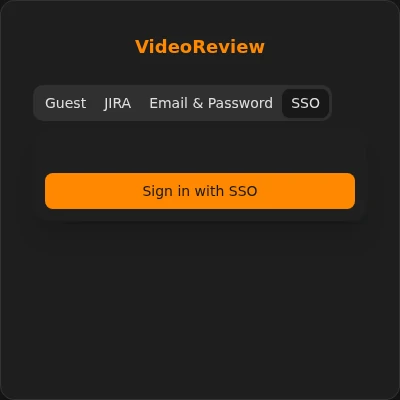
- Press Sign in with SSO on the SSO tab of the login screen
- Sign in on the IdP's login screen
- You come back to VideoReview, signed in
The first sign-in creates a viewer user with the email and name from the IdP. Change the role in Users.
If a user with the same email already exists in VideoReview, that user is signed in. From the second time on, the IdP account is linked to the user, so the user stays the same even if the email changes at the IdP.
Note: a person whose email the IdP has not verified is refused on the first sign-in (have the IdP mark the email as verified).
Note: a person set to active false in Users cannot enter VideoReview even when the IdP sign-in succeeds.
Reference: try it with Keycloak
Section titled “Reference: try it with Keycloak”The repository ships a Keycloak configuration, so the SSO sign-in can be tried without an IdP.
docker compose --profile keycloak up -dEnter the following in the SSO (OIDC) section of Administration and press Test & save.
| Field | Value |
|---|---|
| Issuer URL | http://keycloak:8080/realms/videoreview |
| Client ID | videoreview |
| Client Secret | videoreview-secret |
Open http://127.0.0.1:3489 in the browser and sign in from the SSO tab as user test (password test).
The Keycloak admin console is at http://127.0.0.1:8081 (admin / admin).
Note: the Issuer URL is the address the server reaches Keycloak at, so it is keycloak:8080 as seen from the web container.
Note: stopping Keycloak discards the data inside it.
docker compose --profile keycloak down