General
Settings for the login screen and for how videos are handled. There is nothing to connect to, so Save stores the values as they are and they apply from the next page load.
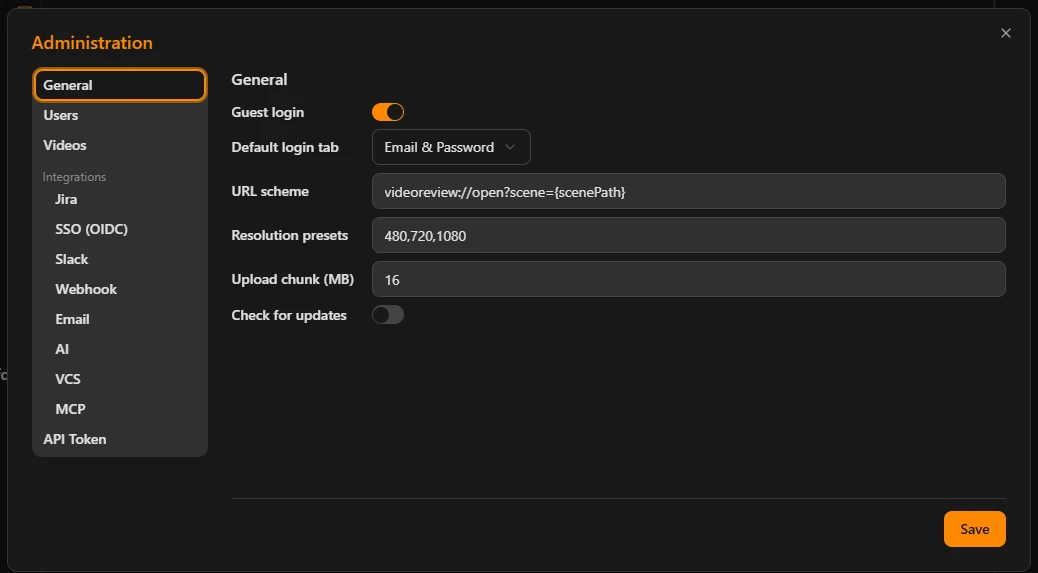
1. Settings
Section titled “1. Settings”| Field | Meaning | Default |
|---|---|---|
| Guest login | On shows the Guest tab on the login screen, and anyone can log in as a guest | Off |
| Default login tab | The tab the login screen opens on (Guest / Email & Password / SSO) | Guest (Email & Password while guest login is off) |
| URL scheme | The link the Open Scene button opens ({scenePath} is replaced with the video's scene path); empty hides the button |
videoreview://open?scene={scenePath} (what the bundled launcher registers) |
| Resolution presets | Widths in pixels of the downscaled variants made by video processing, comma-separated (e.g. 480,720,1080); empty makes none |
empty |
| Upload chunk (MB) | The size of one chunk of a video upload; lower it when a proxy in front of the server rejects bodies of that size | 16 |
| Check for updates | On checks GitHub for a newer release | Off |
Note: Resolution presets apply to videos processed from now on (variants of already processed videos are not remade).
Note: with S3 as the storage the file is sent directly, so Upload chunk is not used.
2. Update to a new release
Section titled “2. Update to a new release”With Check for updates on, … available appears in the account menu and next to Check for updates when a new release is out.
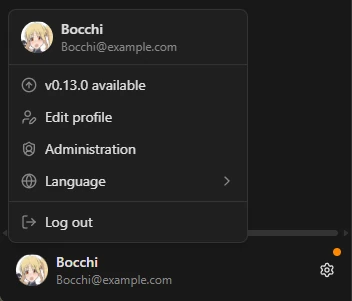
Clicking it opens the release notes.
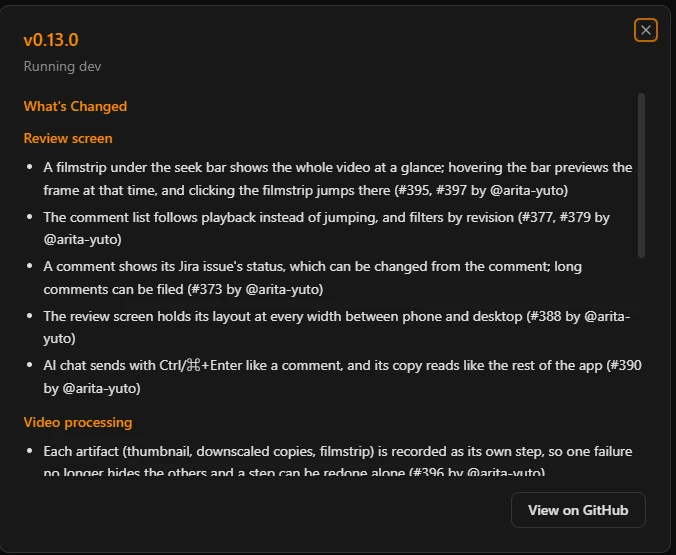
On a server installed with the Local / On‑premises guide, click Update to install the new release.
When it finishes, click Reload to load the page again.
Note: when it runs in Docker, VideoReview inside a container cannot replace its own containers, so Update is not shown.
Update it with the Docker guide.