VCS
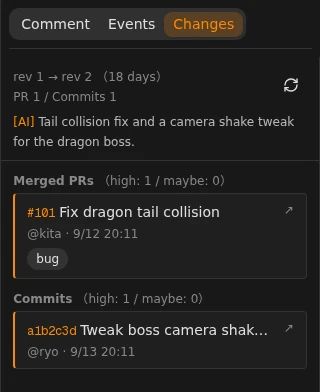
With a repository connected, the Changes tab of a video's side panel shows the commits and pull requests tied to that revision. With the AI features on, it shows a summary of them too (AI Features Guide).
1. Connect and save
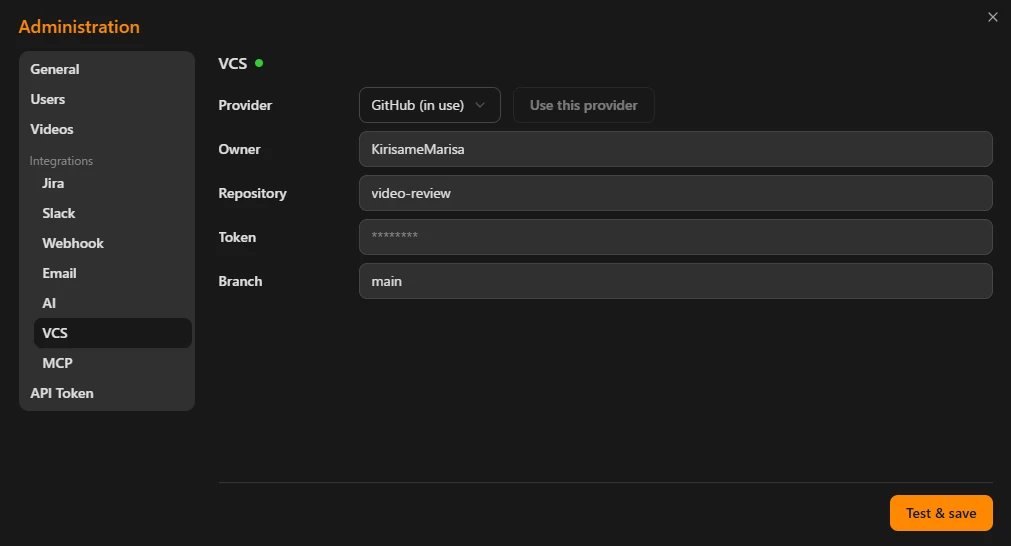
Section titled “1. Connect and save”| Field | Meaning |
|---|---|
| Provider | GitHub |
| Owner | The repository's owner (an organization or a user) |
| Repository | The repository name |
| Token | A personal access token that can read the repository |
| Branch | The branch whose commits are followed (e.g. main) |
- Pick the Provider and fill in the fields.
- Press Test & save.
Only settings that reach the repository are saved, and that Provider becomes the one in use, marked ●.
To switch to another VCS, press Use this provider.
Note: once the token is saved, Owner, Repository and Token cannot be changed; press Reset to drop it and enter it again.
2. Set vcs_watch_paths on a video
Section titled “2. Set vcs_watch_paths on a video”Pass the paths a video relates to, either when uploading it or on the video afterwards (maintenance CLI guide).
# When uploadinggo run . upload-video \ --title "title" \ --folder_key "folder_key" \ --scene_path "scene_path" \ --video_path "/path/to/video.mp4" \ --vcs_watch_paths "/path/to/file1,/path/to/file2"# After uploading, on the video itselfgo run . patch-video \ --video_id "xxxxxxxx-xxxx-xxxx-xxxx-xxxxxxxxxxxx" \ --vcs_watch_paths "/path/to/file1,/path/to/file2"3. Check the Changes tab
Section titled “3. Check the Changes tab”The Changes tab shows the commits and pull requests that touched those paths between the previous revision and the upload date.