AI Features Guide
With AI features enabled, you get the AI summary in the Changes tab, chat search, and search from AI agents.
1. Set up the LLM provider
Section titled “1. Set up the LLM provider”Pick a provider
Section titled “Pick a provider”| Claude / ChatGPT / Gemini | Ollama (local) | |
|---|---|---|
| Privacy | Video titles, comments, and PR information are sent outside | Fully local, nothing leaves the network |
| Accuracy | High | Depends on the model |
| Cost | Token-based billing | Free (hardware cost only) |
| Setup | An API key | Ollama must be running with a downloaded model |
| Chat search | Available | The model must support tool calling (qwen2.5 is recommended) |
| Recommended for | Production, team use | Local and offline environments |
Connect and save
Section titled “Connect and save”Log in as an administrator and open the gear icon at the bottom left → Administration → AI.
- Pick the AI you want under Provider.
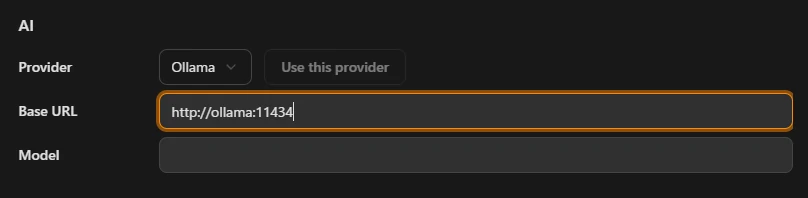
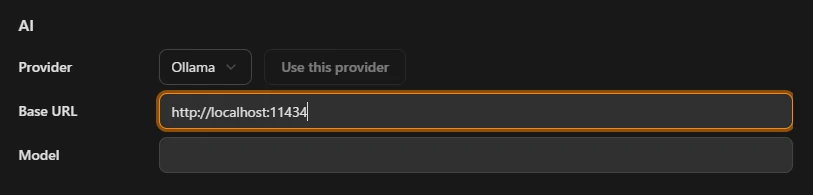
- Enter the API key (Base URL for Ollama) and the Model.
- Press Test & save.
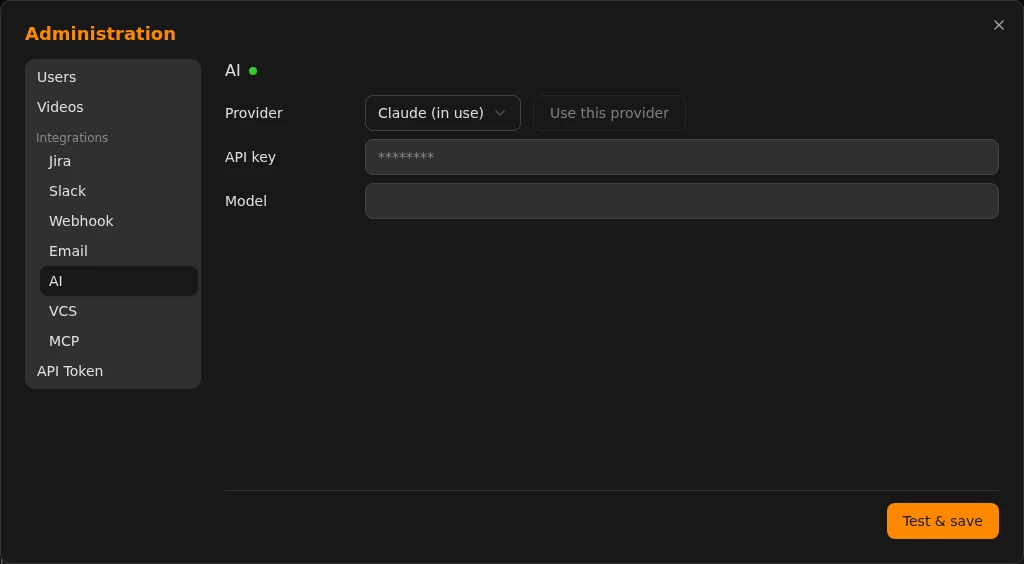
Only settings that connect successfully are saved, and the provider becomes the one in use ●.
To switch to another AI, use "Use this provider".
| Provider | Where to get the API key | Example models |
|---|---|---|
| Claude | https://console.anthropic.com/ | claude-haiku-4-5-20251001, claude-sonnet-4-6 |
| OpenAI | https://platform.openai.com/ | gpt-5-mini, gpt-5 |
| Gemini | https://aistudio.google.com/ | gemini-2.0-flash |
| Ollama | Not needed (enter the Base URL) | qwen2.5:3b (4 GB class GPU), qwen2.5:7b (8 GB class GPU or more, or CPU) |
Note: pick an Ollama model that fits in the GPU's VRAM (a model that does not fit fails to load).
Prepare Ollama
Section titled “Prepare Ollama”Docker
Section titled “Docker”The Ollama container is defined in compose.prod.ollama.yml.
Pick CPU, NVIDIA, or AMD with --profile.
docker compose -f compose.prod.yml -f compose.prod.ollama.yml --profile cpu up -dGPU (NVIDIA)
Section titled “GPU (NVIDIA)”The host needs the NVIDIA Container Toolkit.
docker compose -f compose.prod.yml -f compose.prod.ollama.yml --profile nvidia up -dGPU (Radeon)
Section titled “GPU (Radeon)”docker compose -f compose.prod.yml -f compose.prod.ollama.yml --profile rocm up -dDownload a model
Section titled “Download a model”# First time only; stored in a Docker volumedocker exec videoreview-ollama ollama pull qwen2.5:3bEnter http://ollama:11434 as the Base URL.
Local / On‑premises
Section titled “Local / On‑premises”# 1. Install Ollama: https://ollama.com/download# 2. Download a model (first time only; stored in ~/.ollama/models)ollama pull qwen2.5:3bEnter http://localhost:11434 as the Base URL.
2. Use chat search in the app
Section titled “2. Use chat search in the app”Ask a question
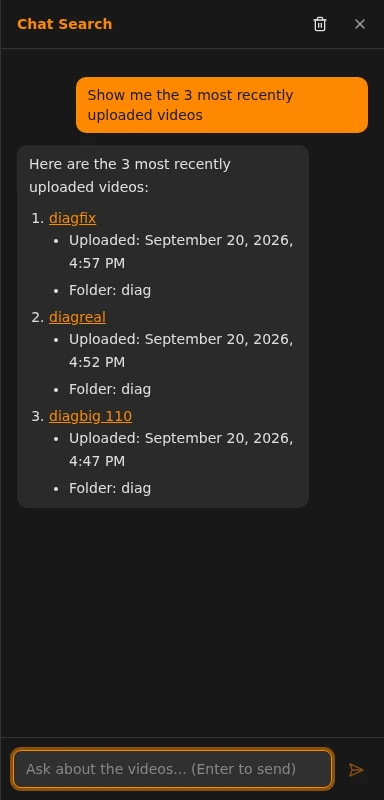
Section titled “Ask a question”Press the chat icon in the video list header, type a question, and press Enter.
Note: chat search is not available when logged in as a guest.
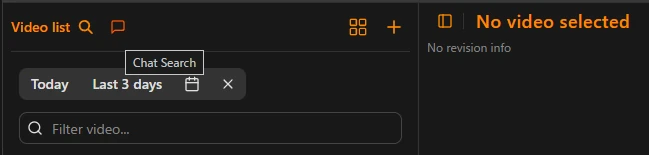
You can search by upload date, title, tags, commit messages, and more.
- "Show me the 3 most recently uploaded videos"
- "Which videos have comments with drawings?"
- "Which code changes went into the latest revision of the dragon boss video?"
3. Search from AI agents
Section titled “3. Search from AI agents”VideoReview exposes tools that read videos, comments, and code changes over MCP (Model Context Protocol) at http://<VideoReview address>/api/v1/mcp.
Each user registers their own AI agent (Claude Code, Codex CLI, Gemini CLI, and so on) with this URL.
Get an API token
Section titled “Get an API token”Ask an administrator to issue an API token and share it with you.
Administrators issue it from Administration → API Token (Admin Screen Guide).
The agent sends this token in the x-api-token header when it connects to VideoReview.
Register the server
Section titled “Register the server”Claude Code
claude mcp add --transport http video-review http://videoreview.internal:3489/api/v1/mcp -H "x-api-token: <API token>"Check with mcp list:
claude mcp listCodex CLI
--bearer-token-env-var of codex mcp add is for the Authorization header, so put x-api-token in ~/.codex/config.toml instead.
[mcp_servers.video-review]url = "http://videoreview.internal:3489/api/v1/mcp"env_http_headers = { "x-api-token" = "VIDEO_REVIEW_API_TOKEN" }Set VIDEO_REVIEW_API_TOKEN in your shell and start codex.
Check with mcp list:
codex mcp listGemini CLI
gemini mcp add --transport http -H "x-api-token: <API token>" video-review http://videoreview.internal:3489/api/v1/mcpCheck with mcp list:
gemini mcp list4. Customize the background knowledge
Section titled “4. Customize the background knowledge”General knowledge such as which tool answers which question and how dates are interpreted is built into VideoReview.
Your team's own knowledge goes into the admin screen.
It is passed to both chat search and AI agents.
Write notes
Section titled “Write notes”Open Administration → MCP, write in the text box, and save.
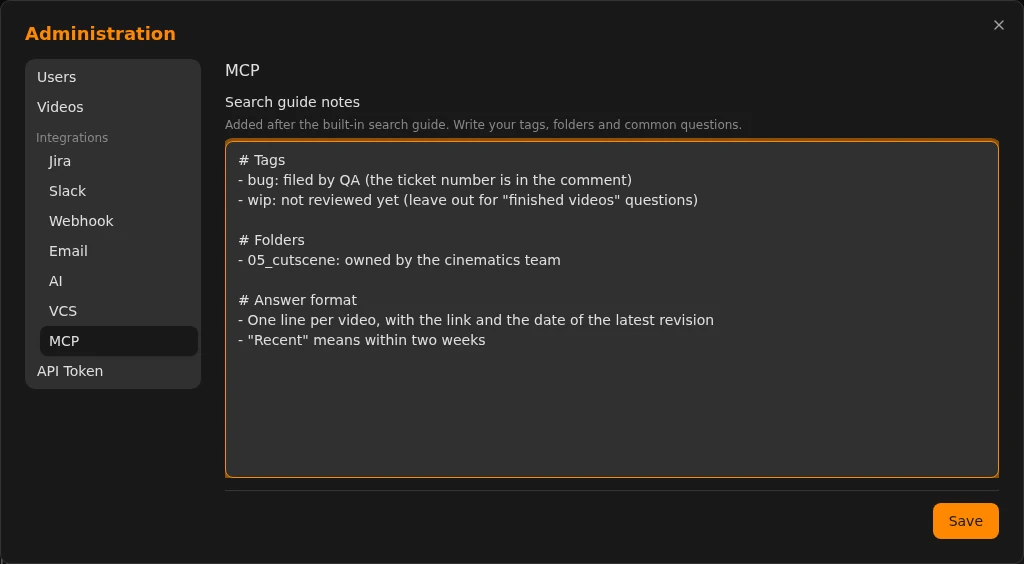
Write what your tags and folders mean, who owns what, how answers should look, and how people phrase common questions
Section titled “Write what your tags and folders mean, who owns what, how answers should look, and how people phrase common questions”# Tags- bug: filed by QA (the ticket number is in the comment)- wip: not reviewed yet (leave out of "finished videos" questions)
# Folders- 05_cutscene: owned by the cinematics team
# Answer format- One line per video, with the link and the date of the latest revision- "Recent" means within two weeks
# Common questions- "Waiting for review" means videos without the wip tag and with no comments5. Add search details to videos
Section titled “5. Add search details to videos”Videos with tags, events and related files attached are easier to find in search.
Attach them with the maintenance CLI (maintenance CLI guide).
Set tags and a summary
go run . annotate-video-rev \ --video_rev_id {uuid} \ --tags "A,B,C" --summary "summary text"Attach events (the JSON format is in the CLI guide)
go run . upload-video-event-context --video_rev_id {uuid} --json_path "events.json"Register related files (needs a connected VCS, see the VCS guide)
go run . patch-video \ --video_id {uuid} \ --vcs_watch_paths "/path/to/file1,/path/to/file2"Reference
Section titled “Reference”The tools VideoReview provides over MCP.
The AI picks and calls them for each question, so users never use them directly.
| Tool | What it returns |
|---|---|
list_videos |
Videos (filter by title, folder, tags, upload date, and comment conditions) |
get_video |
One video with all its revisions |
list_comments |
Review comments (filter by text, user, date, drawings, issue links) |
list_video_events |
Analysis events of one video (on-screen text, transcription, and so on) |
search_videos_by_event |
Videos whose dialogue or subtitles contain a phrase |
list_vcs_changes |
PRs and commits linked to a revision |
get_vcs_summary |
AI summary of the code changes |
list_tags |
Every tag in use |
list_folders |
Every folder in use |
Troubleshooting
Section titled “Troubleshooting”| Symptom | Cause and fix |
|---|---|
The agent's connection returns HTTP 401 |
The x-api-token header is missing, or the token is wrong or revoked (issue a new one) |
| The agent cannot connect | The registered URL is wrong, or VideoReview is unreachable (check that the same address opens in a browser) |
list_vcs_changes asks for from |
The first revision has nothing to compare with (open that video's Changes tab once, or ask about a later revision) |