Users
List users, create them, change their role, and create or update them in bulk with a CSV file.
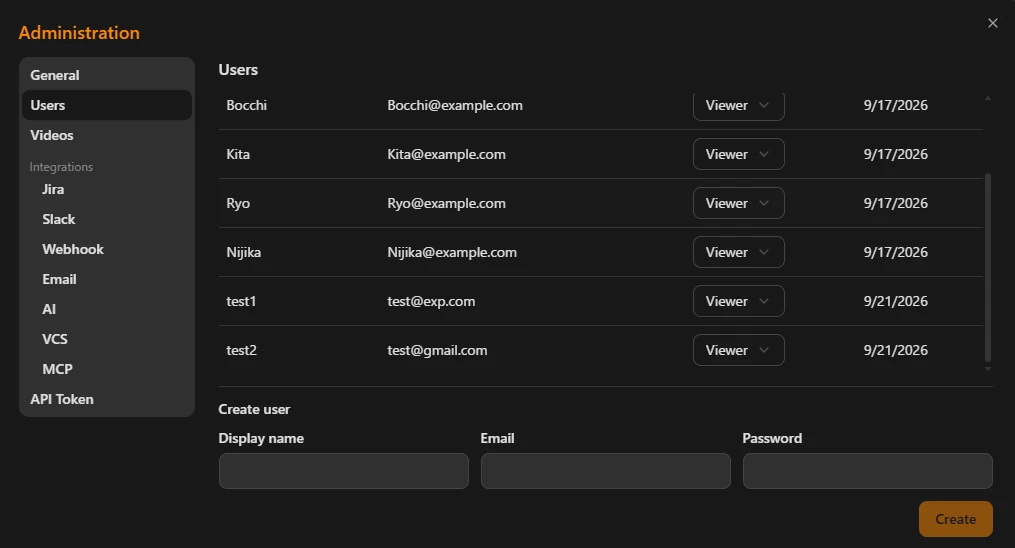
1. Create a user
Section titled “1. Create a user”Use Create user below the list.
- Enter Display name, Email and Password (6 characters or more).
- Press Create.
The new user is a viewer and appears at the end of the list.
2. Create and update users with a CSV file
Section titled “2. Create and update users with a CSV file”Export the users to a CSV file, edit it and import it to create and update users in one go.
Export to a CSV file
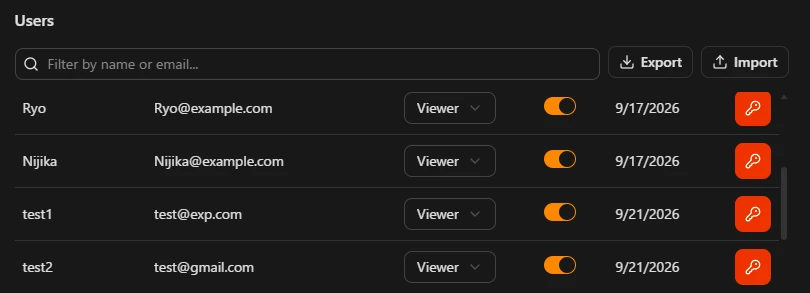
Section titled “Export to a CSV file”Press Export above the list to download users.csv.
Note: the CLI exports with export-users (maintenance CLI guide).
Edit the CSV file
Section titled “Edit the CSV file”| Column | Content |
|---|---|
| id | Empty creates a new user; a value updates that user |
| name | Display name (required) |
| The email address used to log in (required when creating) | |
| pass | Password, 6 characters or more (required when creating) When updating, fill it in only to reset the password |
| role | viewer or admin (empty means viewer when creating) |
| active | true or false (empty means true when creating)A false user cannot log in |
An empty cell in a row that updates a user keeps the current value.
The exported file leaves pass empty for security.
Fill in a new password only for the users whose password should change.
Note: save the file as UTF-8.
Note: you cannot change the role, active or pass of your own row.
Import the CSV file
Section titled “Import the CSV file”- Press Import above the list.
- Choose the CSV file and press Import.
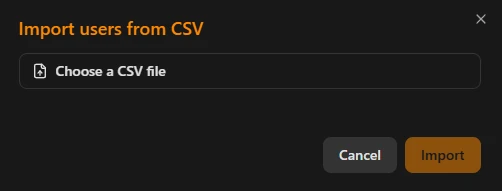
When the import succeeds, the number of created and updated users is shown.
When there are errors, nothing is applied and a list of the row, column and reason is shown.
3. Permissions by role
Section titled “3. Permissions by role”○ marks what the server's API allows.
Reading
Section titled “Reading”| Action | guest | viewer | admin |
|---|---|---|---|
| Video list, folders, metadata, revisions | guest-visible videos only | ○ | ○ |
| Play a video | guest-visible videos only | ○ | ○ |
| Download a video file (at a chosen resolution) | × | ○ | ○ |
| Read comments | guest-visible videos only | ○ | ○ |
| Keep read marks | × | ○ | ○ |
| Events, VCS Changes and the AI summary | guest-visible videos only | ○ | ○ |
Writing
Section titled “Writing”| Action | guest | viewer | admin |
|---|---|---|---|
| Create comments, thumbs up | guest-visible videos only | ○ | ○ |
| Draw on a video | guest-visible videos only | ○ | ○ |
| Edit a comment's text or issue, delete it | own comments (while logged in) | own comments | ○ |
| Create a Jira issue from a comment | × | ○ | ○ |
| Send a comment notification (Slack / Webhook / Email) | × | ○ | ○ |
| Chat search and MCP | × | ○ | ○ |
| Change own profile and avatar | × | ○ | ○ |
| Upload a video (Web / CLI) | × | × | ○ |
| Change video metadata (tags, summary, guest-visible flag) | × | × | ○ |
| Register thumbnails, read the upload status | × | × | ○ |
| Everything in Administration (users, deleting videos, integrations, API Token) | × | × | ○ |
Note: the API Token acts as an admin, except for read marks, which need a person.
Note: guest-visible is a flag an admin sets per video.
Note: a guest is a new person at every login, so after logging out a guest cannot edit or delete their own comments.