Notifications (Slack / Webhook / Email)
Where review comments are announced. Set up only what you need.
- Slack (posting with a bot API token)
- Webhook (an Incoming Webhook of Slack or Microsoft Teams)
- Email (SMTP)
1. Slack
Section titled “1. Slack”Open Administration → Integrations → Slack.

| Field | Meaning |
|---|---|
| Token | The Slack app's bot token |
| Channel | The ID of the channel to post to |
| Team | The Slack team name (with it, VideoReview links straight to the Slack message) |
Press Test & save; the settings are saved once Slack accepts the connection.
Note: once the token is saved it cannot be changed; press Reset to drop it and enter it again.
2. Webhook
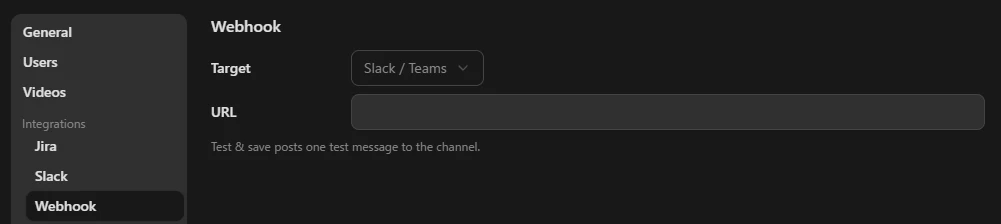
Section titled “2. Webhook”Open Administration → Integrations → Webhook.
| Field | Meaning |
|---|---|
| Target | Slack or Teams |
| URL | The Incoming Webhook URL issued by Slack or Teams |
Test & save posts one test message to the channel and saves the settings when it gets through.
Note: VideoReview builds the message for each Target, so there is nothing to set besides the URL.
Note: once the URL is saved it cannot be changed; press Reset to drop it and enter it again.
3. Email
Section titled “3. Email”VideoReview has no SMTP server of its own. It hands mail to the bundled Postfix relay or to your own SMTP server.
Set where the SMTP relay forwards to (Docker)
Section titled “Set where the SMTP relay forwards to (Docker)”Note: skip this step when handing mail to your own SMTP server.
The Postfix relay in compose.prod.yml (the smtp service) starts only with --profile smtp.
Put the mail server it forwards to in .env:
# The SMTP server to forward to (e.g. `[smtp.gmail.com]:587` for Gmail)SMTP_RELAYHOST="[smtp.example.com]:587"# The user name for SMTP authenticationSMTP_RELAYHOST_USERNAME="you@example.com"# The password for SMTP authenticationSMTP_RELAYHOST_PASSWORD="xxxx xxxx xxxx xxxx"Note: for Gmail, turn on 2-Step Verification, create an App Password, and put it in SMTP_RELAYHOST_PASSWORD.
After changing .env, start with --profile smtp.
With Ollama as well, pass both: --profile cpu --profile smtp.
docker compose -f compose.prod.yml --profile smtp up -dConfigure the Email section
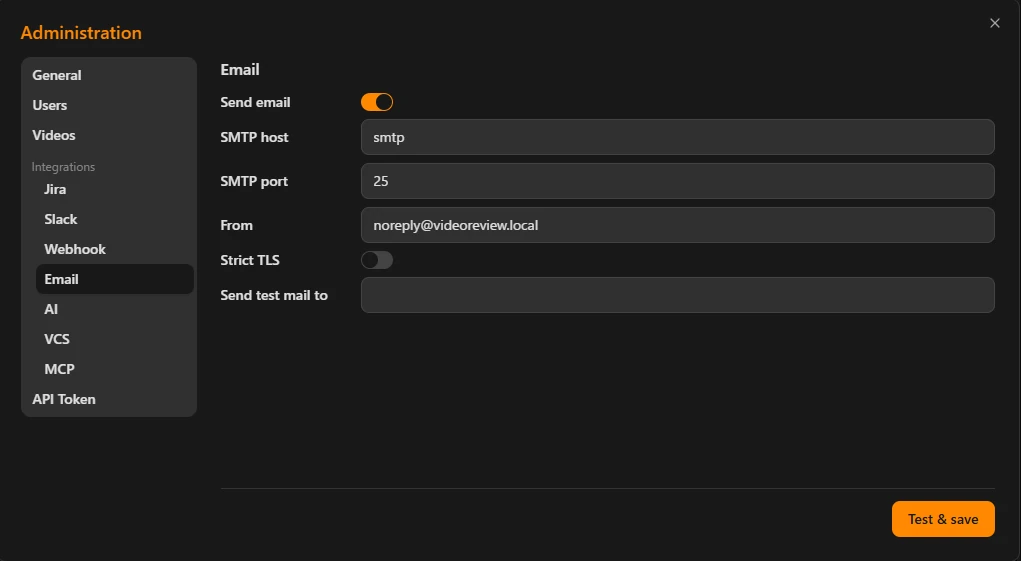
Section titled “Configure the Email section”Open Administration → Integrations → Email.
| Field | Meaning |
|---|---|
| Send email | On sends the notifications |
| SMTP host | The SMTP server's host name (smtp for the relay above) |
| SMTP port | 25 for the relay above |
| From | The sender address (e.g. VideoReview <noreply@example.com>) |
| Strict TLS | On only when the SMTP server has a trusted certificate |
| Send test mail to | Where Test & save sends its test mail |
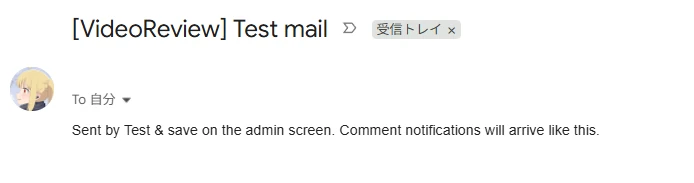
Press Test & save; the settings are saved and one mail arrives at that address.
If nothing arrives, check the relay's log: docker compose -f compose.prod.yml logs smtp.